Set up ShappyChat.
Run Shappy Backend on your server. Connect an app. Then add the chat to the app. You can also try the Notes demo on your computer first.
Version 0.1.0 is a self-hosted release for one operator. The SDK is not on npm. Your backend supplies it.
1. Run the backend.
You need Docker with Docker Compose v2 and a model server. For example, use LM Studio or Ollama on this computer.
- Put all the files of the release in an empty folder.
- Check the files with
SHA256SUMS. - Load the two image archives. Use
amd64on x86-64. Usearm64on Apple silicon or ARM Linux. - Make the settings file and start the stack.
- Get a sign-in link and open it in your browser.
sha256sum -c SHA256SUMS
docker load -i shappychat-backend-0.1.0-linux-<arch>.tar.gz
docker load -i shappychat-celld-0.1.0-linux-<arch>.tar.gz
cp .env.example .env
docker compose up -d
docker compose exec backend shappy login
The link is valid for 10 minutes. You can use it one time only. On macOS, use shasum -a 256 -c SHA256SUMS to check the files.
Follow the setup steps.
The backend opens the Setup page. It has seven steps:
- Check this server: celld and storage.
- Model: choose LM Studio, Ollama or a different endpoint.
- Tools: turn on the MCP connections of your app.
- Connect an app: get the credential and set the allowed origin.
- Test message: send a message through the full path.
- Add to your app: copy the code or the prompt for your coding agent.
- Ready: read the summary.
For HTTPS, backups, upgrades and problems, read the self-host guide.
2. Add the chat to your app.
You can give this work to your coding agent, or do the three steps yourself.
Give it to your agent.
Step 6 of the setup gives a prompt with your backend URL, app origin and tools. Copy the prompt into your coding agent. The agent can also read /llms.txt. See Set up with your agent.
Or do the three steps.
Step 1. Install the SDK from your backend. Use the public URL of your backend.
npm install https://chat.example.com/sdk/shappychat.tgzStep 2. Add a /shappy/* route to your server. The route checks the user and adds the app credential. Put SHAPPYCHAT_URL and SHAPPYCHAT_TOKEN in the server environment. Do not put them in browser code.
import { Readable } from "node:stream";

const { SHAPPYCHAT_URL, SHAPPYCHAT_TOKEN } = process.env;

app.all("/shappy/*", requireSignedIn, async (req, res) => {
  const path = req.originalUrl.slice("/shappy".length);
  const upstream = await fetch(SHAPPYCHAT_URL + path, {
    method: req.method,
    headers: {
      Authorization: `Bearer ${SHAPPYCHAT_TOKEN}`,
      "Content-Type": "application/json",
    },
    body: req.method === "GET" ? undefined : JSON.stringify(req.body),
  });
  res.status(upstream.status).type(upstream.headers.get("content-type") ?? "json");
  Readable.fromWeb(upstream.body).pipe(res);
});
Step 3. Create a conversation and mount the chat in the browser.
import { mountShappyChatDrawer, RemoteShappyChatRuntime } from "@shappychat/chat";
import "@shappychat/chat/style.css";

const headers = { Authorization: `Bearer ${userToken}`, "Content-Type": "application/json" };
const res = await fetch("/shappy/api/conversations", { method: "POST", headers, body: "{}" });
const { conversationId } = await res.json();

const runtime = await RemoteShappyChatRuntime.connect({ url: "/shappy", token: userToken, conversationId });
mountShappyChatDrawer(document.body, { runtime, presentation: "floating" });
Keep the conversation ID of each user, so that the chat continues the next time. A credential is for one app. It is not for one user. If your customers use the app, your server must give each user access only to their own conversations.
Let the chat use your screen.
To let the chat use a control on the page, give the control a data-agent-id. Each ID must be different. Discovery does not include password, file or hidden inputs.
<button data-agent-id="notes.new"
  data-agent-description="Open the form. It does not save.">
  New note
</button>
To change the look of the chat, open Studio. For all the options, read Embed the chat and UI control discovery.
3. Add the Chrome extension.
The extension needs Chrome 141 or newer. It is not in the Chrome Web Store.
- Unzip
shappychat-extension-0.1.0.zipfrom the release. - Open
chrome://extensions. Turn on Developer mode. - Click Load unpacked and select the unzipped folder.
- Open the ShappyChat side panel. Click Sign in to ShappyChat, then Connect to a backend.
- Enter the backend URL and the credential of the extension.
Give the extension its own credential in Connected apps. Its origin is chrome-extension://<extension-id>. If the chat cannot use pages, open the details of the extension and turn on Allow user scripts.
The extension sends the page content that the chat reads to the model server that you configured. Read Chrome extension for the permissions and the limits.
Try the demo on your computer.
The Notes demo is a small notes app with the chat in it. It needs the ShappyChat source checkout and Node.js 22.19 or newer. It does not need Docker.
- Start a local model server, for example LM Studio at
http://localhost:1234/v1. Load a chat model that can call tools. - Install the dependencies and start the demo.
npm ci
SHAPPYCHAT_MODEL_URL=http://localhost:1234/v1 npm run example
The demo opens at http://127.0.0.1:8850. If you do not set SHAPPYCHAT_MODEL_URL, the demo uses a scripted provider. The scripted provider is not a real model. If the browser does not open, open the URL in ~/.shappychat/example-notes/launch-url. Keep this URL private.
Choose a layout and a model.
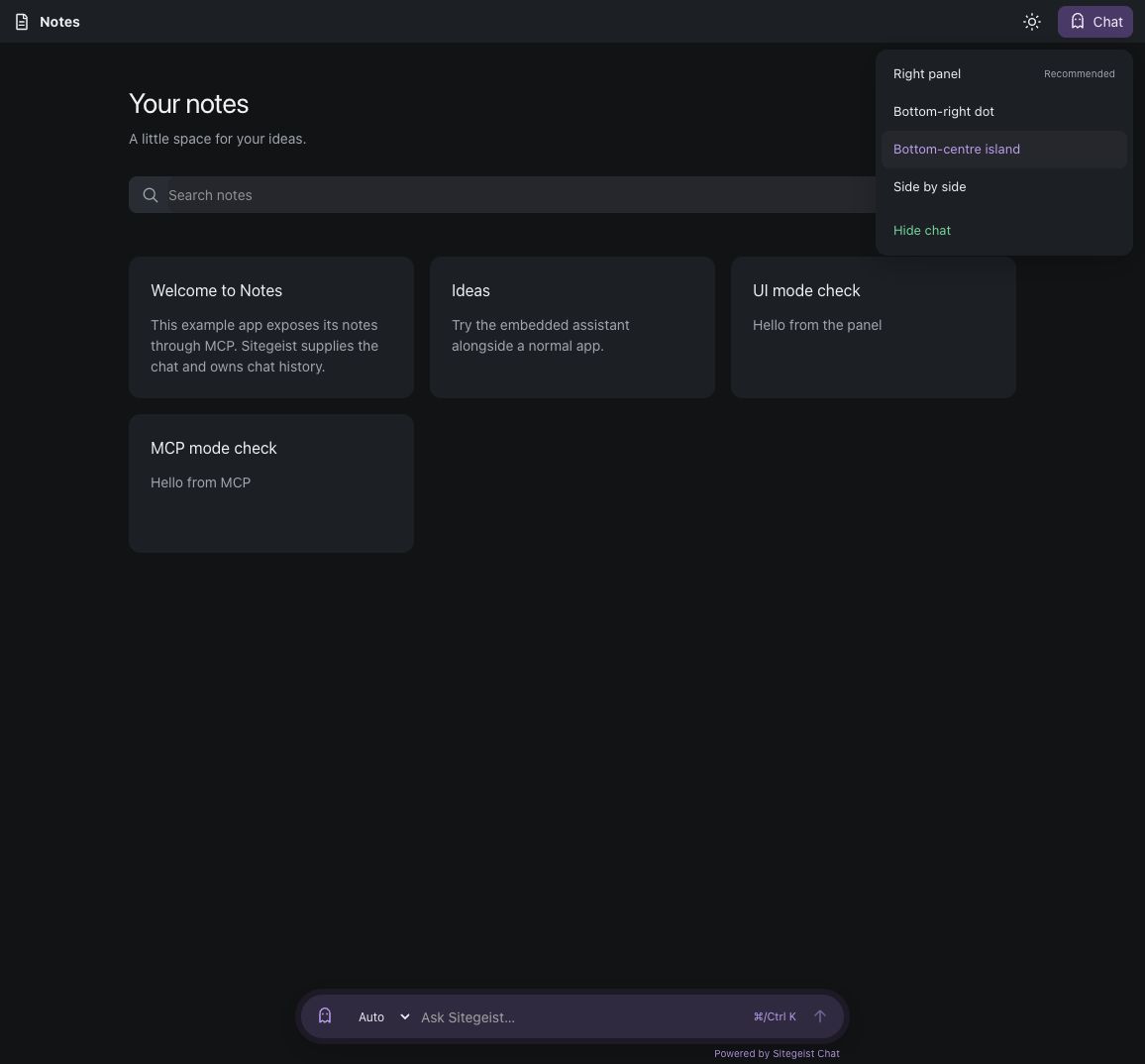
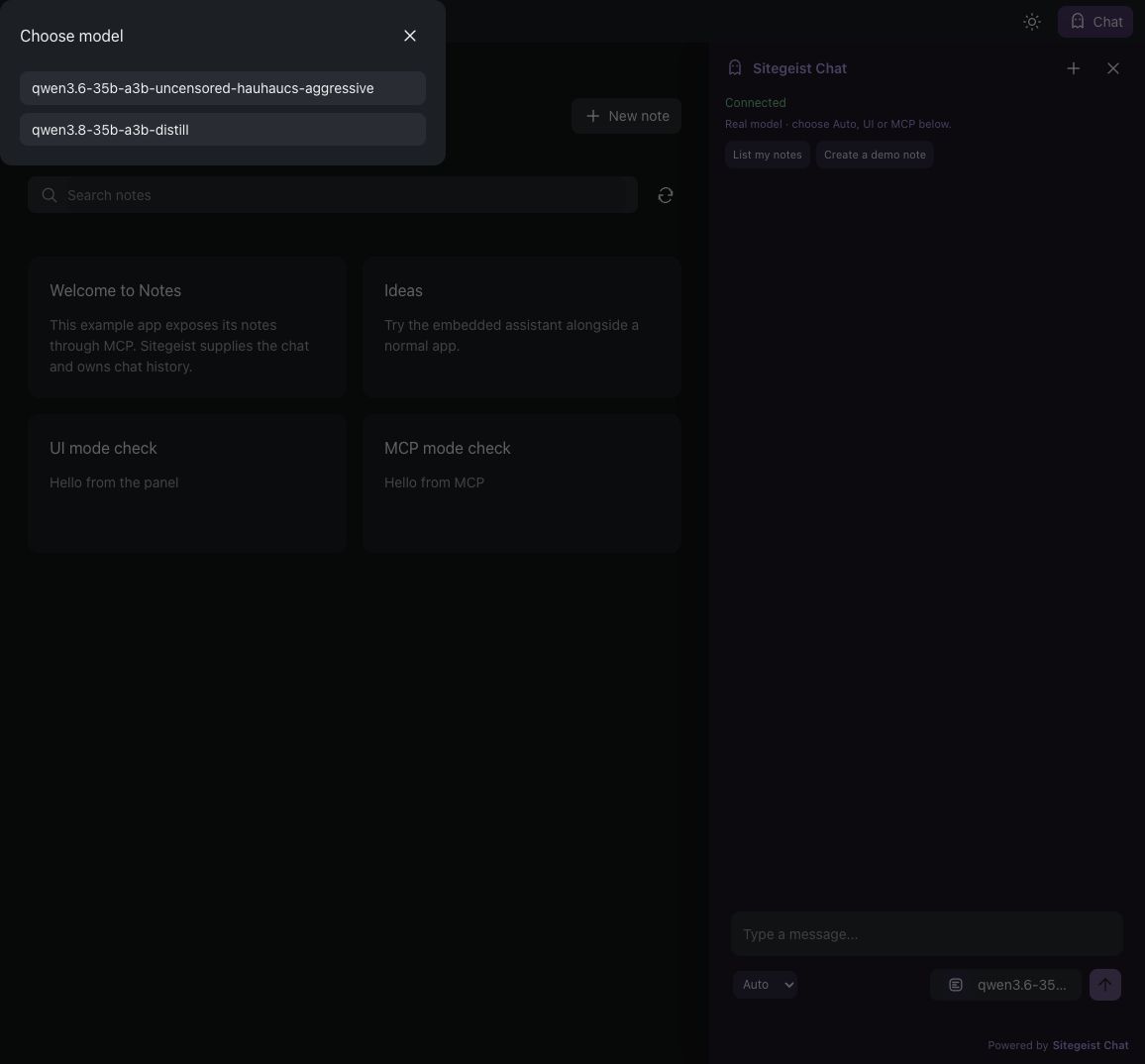
Click Chat and choose a layout. Click the model name next to the message field to choose a model.
Do a real operation.
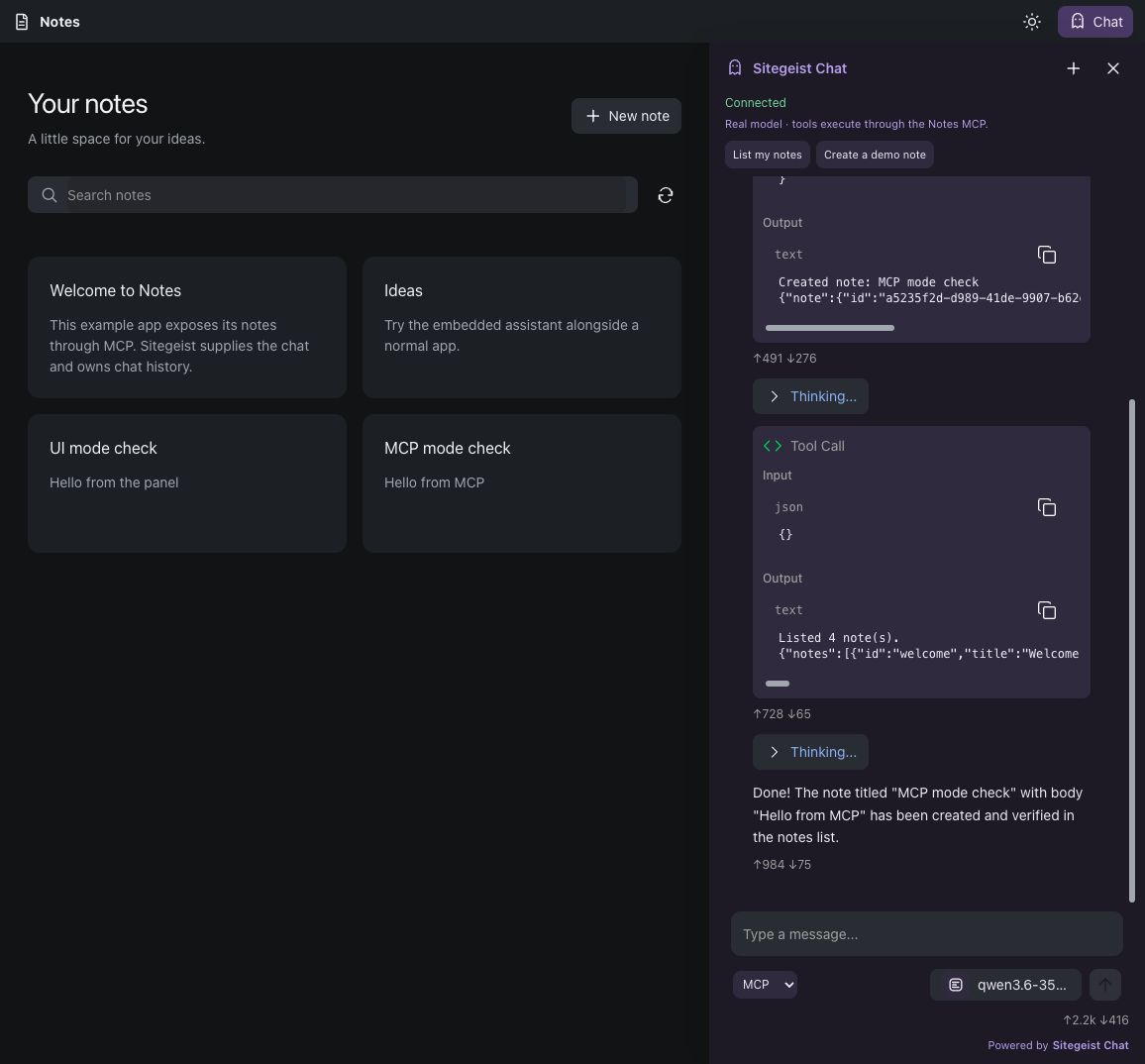
Choose MCP. Send “Create a note titled Demo with body Hello”. Look at the tool result and the list of notes. Then choose UI and ask for a second note. The chat uses the form on the page.
If it does not work
- No models: make sure that the server runs and that the URL ends in
/v1. Load a chat model. - Tool unavailable: UI mode needs the app tab. MCP mode needs connected tools. Or choose Auto.
- On a phone: a full panel can cover the app. Use the floating or island layout.
For more help, read Quickstart and Troubleshooting.